
Share post:


TABLE OF CONTENTS
See Virtru In Action
Share post:
Microsoft Outlook is the backbone of corporate email for good reason. But the question most IT and security teams are asking isn't whether Outlook is productive — it's whether it's actually secure.
The short answer: it depends on how you configure it, and what "secure" means to your organization.
Outlook ships with several encryption options, each suited to different threat models and compliance requirements. If you need to meet strict regulatory standards — CMMC, ITAR, HIPAA, or CJIS — the right choice matters a lot. And if you're relying on default settings, you're probably leaving gaps.
This guide walks through every native Outlook encryption option, where each one falls short, and how organizations add a persistent policy layer that stays with email after it's sent.
Why Native Outlook Encryption Often Isn't Enough
Before digging into options, it's worth naming the core limitation of most built-in encryption: it protects data in transit, not after delivery.
Once an encrypted email lands in a recipient's inbox, that protection typically ends. You can't revoke access. You can't enforce forwarding restrictions. You have no audit trail. The email sits as plain text inside their mailbox, accessible to whoever has access to that account — including, potentially, the email provider itself.
For regulated industries, that's a problem. CMMC, ITAR, and CJIS all require persistent data protection — controls that follow information regardless of where it goes. Encryption that stops at delivery doesn't meet that bar.
There's also the key ownership question. With most Microsoft-native encryption, Microsoft holds the keys alongside the encrypted content. Many security teams prefer to keep those two things separate — so that even in the event of a breach, attackers can't access both the data and the means to decrypt it.
One example: a large global engineering firm saved over $1 million by choosing Virtru for Outlook instead of moving to Microsoft GCC High to meet their compliance requirements. The performance gap between a layered approach and an all-in-on-Microsoft stack adds up quickly.
TLS Encryption: The Native Outlook Email Security
Transport Layer Security (TLS) is the baseline. Every major email platform — including Outlook — encrypts messages in transit using TLS. No configuration required; it's on by default.
Think of TLS like a secure underground tunnel. When you send an email, it travels through that tunnel from your server to the recipient's server, protected from interception. It's a solid baseline against network-level eavesdropping.
Here's the catch: TLS only protects the tunnel, not the message inside it. Once the email arrives at the destination server, the protection is gone. The messages themselves are plain text within that "bunker." If someone gains access to the account or server — through compromised credentials, a breach, or insider access — they're reading unencrypted content.
TLS is necessary, but it's not sufficient.
Recommended Reading: TLS vs. End-to-End Encryption: What's the Difference?
Microsoft Purview Message Encryption
Office 365 Message Encryption (OME) was deprecated in 2023 after researchers identified a vulnerability allowing encrypted content to be reconstructed from a large enough volume of intercepted messages. Microsoft replaced it with Microsoft Purview Message Encryption, available on certain Microsoft 365 SKUs.
Purview is a meaningful improvement over the old OME. The basic experience is simple enough:
-
Click the Encrypt button in Outlook
-
Choose your rule
-
Send.
But the simplicity ends there. Three issues to understand before you rely on it:
Setup complexity. The "Encrypt" button only shows two default options: Encrypt and Do Not Forward. Any other transport rule requires admin configuration — a non-trivial process, especially as your policy requirements grow. Worse, automatic encryption rules only trigger after Microsoft scans the unencrypted message content. Your email body is visible to Microsoft before any protection is applied.
Recipient friction. Purview works smoothly when both sender and recipient are on supported Outlook versions. For everyone else — Gmail users, older Outlook clients, non-Microsoft platforms — the experience degrades. Recipients get redirected to a browser page to authenticate or request a one-time passcode. For external collaboration at any volume, this creates real friction.
Inconsistent setup across versions. Microsoft's documentation for Purview encryption covers S/MIME and Purview simultaneously, which makes it genuinely confusing. Depending on your subscription and Outlook version, the path to encrypting a single message might require navigating Options → More Options → dialogue launcher → Security Settings. That's too many steps to expect consistent adoption across a workforce.
Purview improves email security. But it doesn't solve the persistent control problem, and it doesn't give you the audit visibility most compliance frameworks require.
S/MIME for Outlook and Legacy Systems
S/MIME is the older of Outlook's two native encryption standards — and the more technically demanding.
To use S/MIME, every sender and recipient must have certificates installed and configured on their mail clients. If your recipient doesn't have S/MIME set up, the message either won't encrypt or won't be readable on their end. Given how rarely external parties have S/MIME configured, this limits its usefulness for anything beyond tightly controlled internal environments.
S/MIME also requires key exchange between parties. If a key is compromised — through a phishing attack, device theft, or insider threat — the protection fails. The encryption is sound in theory, but the operational complexity introduces attack surface.
For organizations already running PKI infrastructure with internal users on a known configuration, S/MIME has its place. For most commercial environments involving external recipients, it introduces more overhead than it's worth.
As Virtru's Mike Morper puts it, "S/MIME's time has come and gone."
The Best Outlook Email Encryption: Policy-Driven Email Governance
The options above share a common limitation: they're encryption-only. They secure the channel or the message, but they don't control what happens to information after it's delivered.
The world is moving from trust-based to data-centric security. That shift means treating every email as a policy-bound object — not just a protected tunnel — so that access controls travel with the information regardless of where it ends up.
That's the architecture Virtru Email for Outlook delivers.
Rather than bolting encryption onto Outlook as an afterthought, Virtru implements attribute-based access control (ABAC) directly within the email workflow. It evaluates recipient entitlements before delivery, enforces classification-based policies automatically, and maintains persistent controls after messages are sent — all from within Outlook itself. Integration, not replacement.
Here's what that means in practice:
Persistent Access Controls
You can revoke access to an email you've already sent. You can set expiration dates. You can restrict forwarding, downloading, or printing — and those restrictions hold even if the recipient is on a non-Outlook platform.
Recipient Entitlement Enforcement
Before an email delivers, Virtru evaluates whether the recipient is actually authorized to receive it based on organizational policy — not just whether the address is valid. Sensitive information doesn't reach unauthorized inboxes, even when a sender makes a mistake.
Classification Tool Integration
Virtru works with Microsoft Purview Information Protection, Fortra, and Varonis, among others. When a DLP or classification tool applies a sensitivity label, Virtru automatically enforces the corresponding protection and access policy — no manual decisions required from users.
Key Management Sovereignty
Encryption keys are stored separately from encrypted content. Organizations can take this further with Virtru Private Keystore, which keeps key management entirely within your own infrastructure — so even Virtru cannot access your data. This is the architecture that supports compliance requirements like CMMC, ITAR, and CJIS, where key custody matters.
Audit and Control
Every access event is logged. You can see who opened an email, from where, and when — giving compliance teams the evidence trail that regulations increasingly demand.
No Workflow Disruption
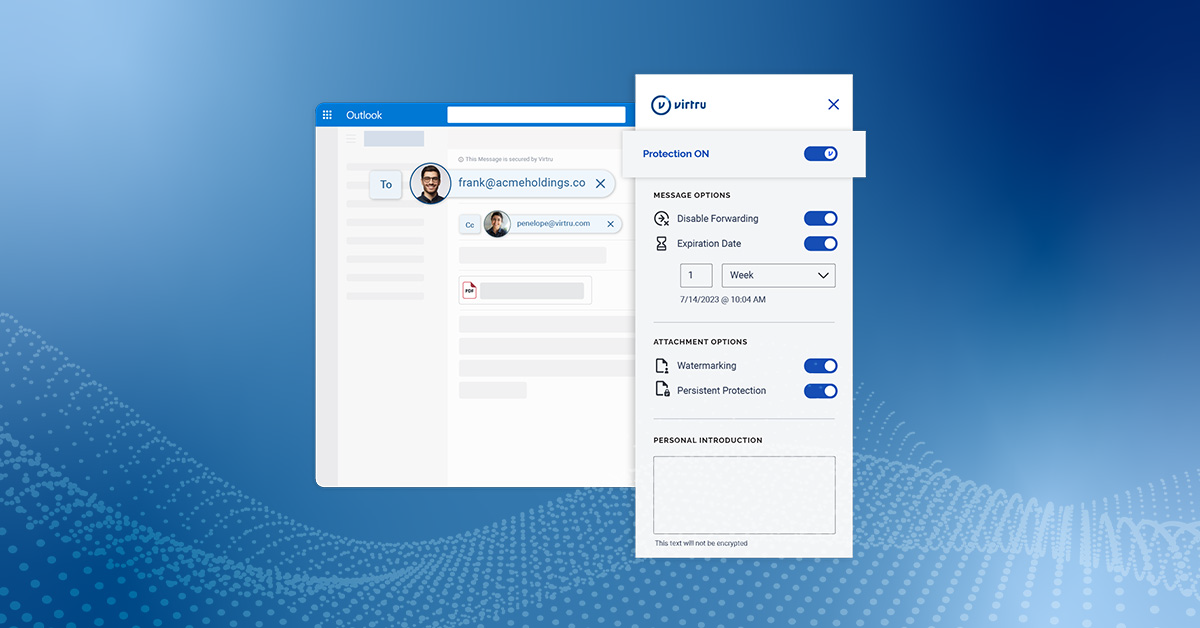
Users work from Outlook exactly as they always have. The Virtru add-in surfaces controls within the compose window. External recipients without Virtru open messages through a secure reader — no account creation, no certificate installation.
Protection Travels with Information
That's the difference between encrypting a channel and governing data.
Here's a video overview of how Virtru works to protect email:
The steps to encrypt an Outlook email with Virtru are remarkably simple:
-
Install the Virtru plugin
- Compose an email
- Click the blue Virtru toggle button to apply encryption.
You can optionally add further access controls, expiration dates, and other parameters for your message. But all you need is the blue toggle button to ensure your Outlook email (and any attachments) are encrypted and protected through their full lifecycle. You can always change security controls or revoke access entirely, any time you choose. Even after you've hit "send."Another feature that customers love about Virtru is that it does not require new accounts: Both senders and recipients just use the credentials they already have. No "guest accounts" or new passwords necessary.
Forr more detail, here's how Virtru for Outlook works, step by step.
Comparing Your Outlook Encryption Options
|
|
Protects in Transit |
Protects at Rest |
Persistent |
Audit Trail |
External Recipient Friction |
Key Sovereignty |
|
TLS (default) |
✅ |
❌ |
❌ |
❌ |
None |
Microsoft |
|
Purview Message Encryption |
✅ |
✅ |
Limited |
Limited |
High |
Microsoft |
|
S/MIME |
✅ |
✅ |
❌ |
❌ |
Very high |
Shared |
|
Virtru Email for Outlook |
✅ |
✅ |
✅ |
✅ |
Low |
Your choice |
Choosing the Right Approach for Your Organization
If your threat model is basic — protecting against network interception, general compliance hygiene, internal-only collaboration — Purview Message Encryption may be adequate. Most Microsoft 365 organizations already have access to it.
However, if you're in a regulated industry, working with controlled information (CUI, PHI, ITAR-covered technical data), or collaborating externally at any volume, the persistent control gap in native options becomes a material risk. The moment sensitive email leaves your environment, you lose visibility and control.
Virtru Email for Microsoft Outlook is built for organizations where that gap matters. It extends the enforcement you configure inside your environment out to wherever information travels — without asking users to change how they work.
Talk to our team today to see how it fits your existing Microsoft 365 environment.
Editorial Team
The editorial team consists of Virtru brand experts, content editors, and vetted field authorities. We ensure quality, accuracy, and integrity through robust editorial oversight, review, and optimization of content from trusted sources, including use of generative AI tools.
View more posts by Editorial TeamSign Up for the Virtru Newsletter
/2026%20BLOG/26-Blog-Protecting%20Patient%20Trust.webp)
Protecting Patient Trust: How NHS Leaders Can Enforce Policy Automatically
/blog%20-%20FIPS140-3/Virtru-FIPS1403.webp)
FROZEN -- FIPS 140-3 Is the New Standard for Cryptographic Validation. Here Is What That Means for Your Data.
/blog%20-%20rocket.chat/Virtru-rocketchat-blog.webp)
Security Proven, Not Promised: How RocketChat and Virtru Enable Continuous Access Control
/blog%20-%20security%20triad/triad-blog.webp)
The Modern AI Security Triad
/blog%20-%20zero%20trust%20security,%20journey%20ends%20at%20the%20data/Zero-Trust-Peppo.png)
Zero Trust Security: The Journey Ends at the Data
/blog%20-%20Cymphony/cymphony-ai-workforce.webp)
Cymphony, AI Agents, and the Case for Security That Travels With Data

Nikesh Arora Is Right: It’s Time to Rethink Your Cyber Security Architecture

IBM’s Breach Report Makes the Case for Object-Level Data Security

Should You Go Against the Flow? Virtru vs. FlowCrypt PGP Encryption

The DoD SAFE Alternative Your Team Will Actually Use